NextRing App Manual
How to set up the app, read your values and find everything else. Your values are calculated on your phone; you only need an account for a few extras.
Manual as PDF (German)Contents
1The app at a glance
Five sections in the bar at the bottom
- Today
- Your day at a glance: energy, recovery, strain, sleep.
- Recovery
- How you slept and how well you recharged overnight.
- Strain
- Steps, workouts and stress: what costs you energy.
- Body
- Heart, HRV, temperature and cycle over the long term.
- Coach
- Tips based on your own data, plus a chat once you're signed in.
At the top of every tab
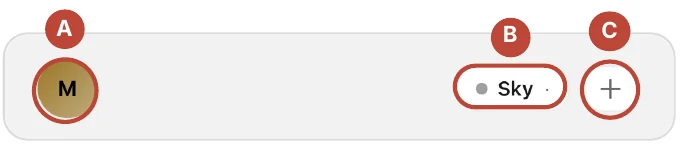
- A Circle at top left
- Shows your initials. Tapping it opens your Account: profile, settings, your data, help.
- B Ring at top right
- Shows whether your ring is connected and its battery level. Tapping it opens your ring's page.
- C “Connect” or “+”
- Pairs a ring. As long as no ring is paired, it says Connect; after that, a “+”.
2Getting Started
- Open the NextRing app and tap Let's go. From then on, Setup at the top shows how far along you are.
- Under Your account you can sign in. You can also carry on without signing in by tapping Continue. The app will ask again as soon as you need an account.
- Go through the other short steps. Anything you don't want to fill in, you can skip.
- Under Permissions, allow Bluetooth. Without Bluetooth, the app can't find your ring. Apple Health or Health Connect is optional.
- Place your charged ring next to your phone. After a short search, it appears under Connect your device. Tap it.
- Tap Finish. The app opens Today.
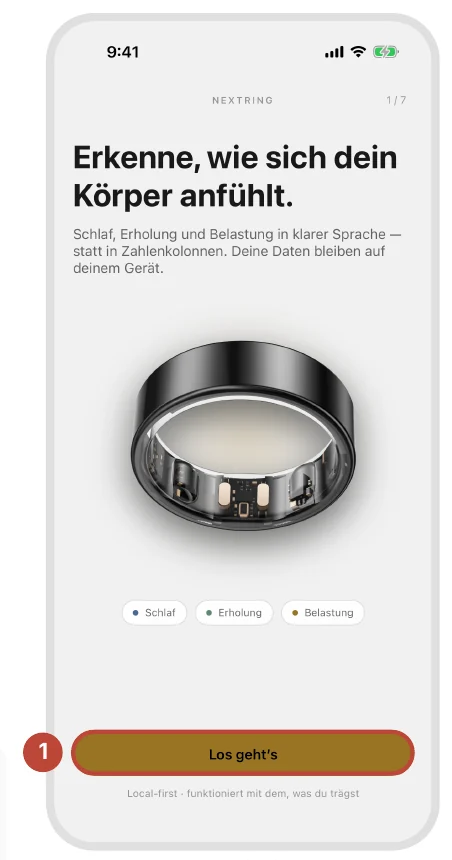
Pairing a ring later:Today“Connect” or “+”Tap the ring
An account is optional
You only need to sign in for extras, such as the Coach chat, cloud sync, joining a club, or deleting your account.
Signing in works without a password: Email link — no password. If you read the email on another device, enter the 6-digit code it contains.
How accurate does it get?
- Before the 1st night
- No scores yet. You can already use the check-in.
- 1–6 nights
- First values, marked approx. That means: estimated.
- After 7 nights
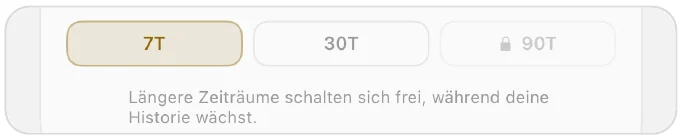
- Your baseline (your normal values) is set. From 8 nights on, the 30-day view unlocks.
- From 14 nights
- Full accuracy.
Shown is the NextRing app on iPhone. On Android, everything works the same way.
3Today
Your home screen. Read it from top to bottom. At the top left, A opens your account; at the top right, B shows your ring with its battery level.
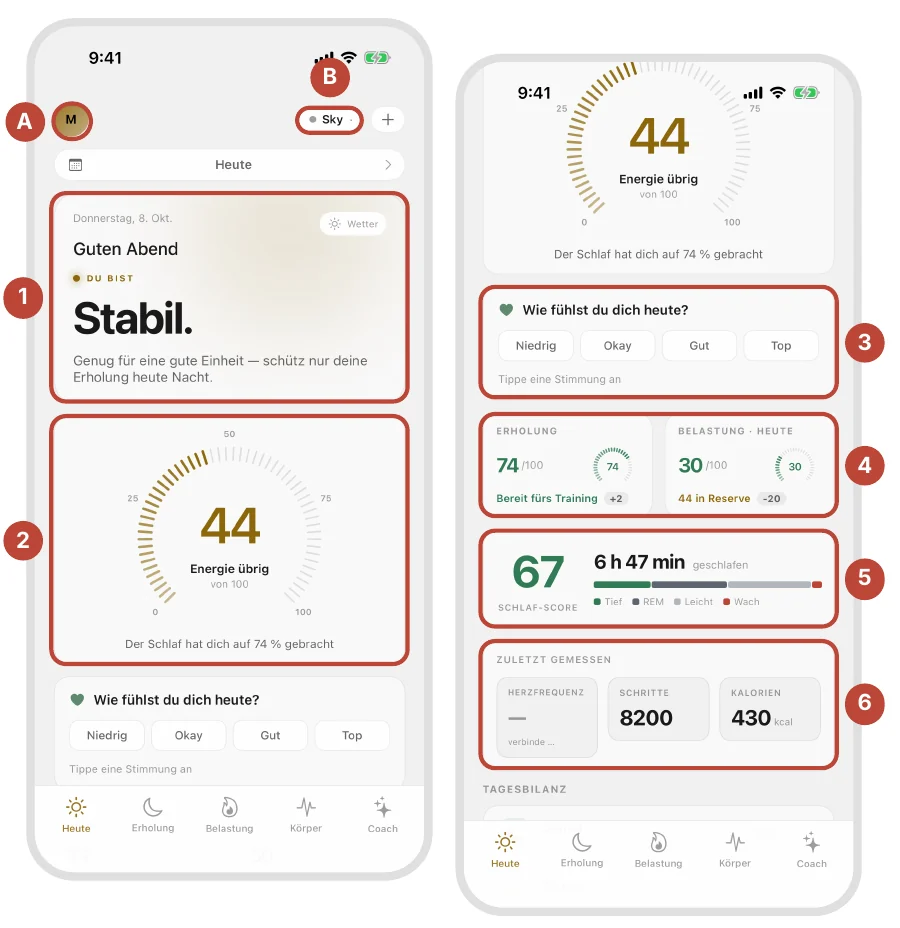
- At the top, one word sums up how much energy you have today, e.g. “Steady”, plus a sentence on what that means for you.
- Energy left, out of 100. This is your main value: your recovery when you woke up minus your strain so far.
- How are you feeling today? Mood, energy and muscle soreness in a few seconds. Counts even without the ring.
- Two tiles: Recovery and Strain · today. Tap one and What it's made of shows what's behind it.
- The sleep card sums up your night. Tapping it takes you to Recovery.
- Last measured: heart rate, steps and calories straight from the ring.
- At the very bottom: Daily balance, what cost you energy today and what recharged you.
How your main value is calculated
The example from the images above: recovery when you woke up minus strain so far.
4Recovery & Sleep
Sleep is your most important way to recharge. That's why you'll find it in the Recovery tab – there is no separate sleep tab.
Your last night
At the top of the tab, the sleep card sums up your night: in large type how long you slept, below it from when to when. Next to it is the Quality as a number out of 100. Tap the card to see everything in detail:
RecoveryTap the sleep cardSleep trend
Sleep timeline shows when you were in which stage. Stages lists the duration and share of each stage:
- Deep
- the calmest sleep, when your body powers down the furthest.
- REM
- dream sleep: the brain is active, the body still.
- Light
- the transition between stages, usually the largest part of the night.
- Awake
- short waking phases. You won't even notice most of them.
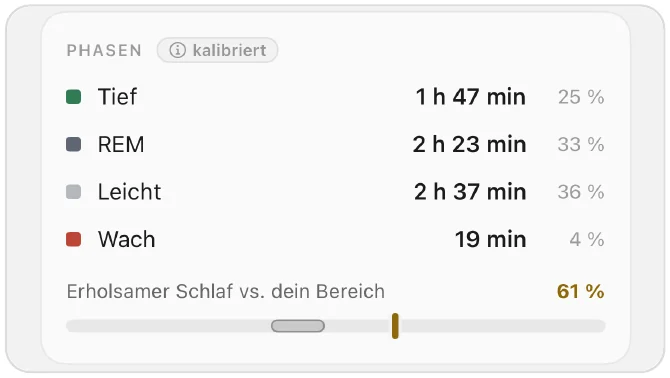
Times compares, for example, how long it took you to fall asleep and how much of your time in bed you actually slept, against your range.
Trends over weeks
Below the sleep card come your Recovery metrics (see “Body”) and Recent nights. In the sleep trend, Trends shows your progress over time. Longer periods unlock once there are enough nights:
Correcting your sleep
Is the time you fell asleep or woke up wrong? You can only correct the last night.
- Tap Edit below the sleep card. Correct last night opens.
- Drag the handles to the times when you Fell asleep and Woke up.
- Tap Recalculate. Sleep and recovery are recalculated, and the card is then marked as Edited.
Or via your account:Circle at top leftDevices & dataEdit last night's sleep
5Strain
What costs energy – and what it gives you. In the Strain tab you see the day's movement, training and stress.
Movement
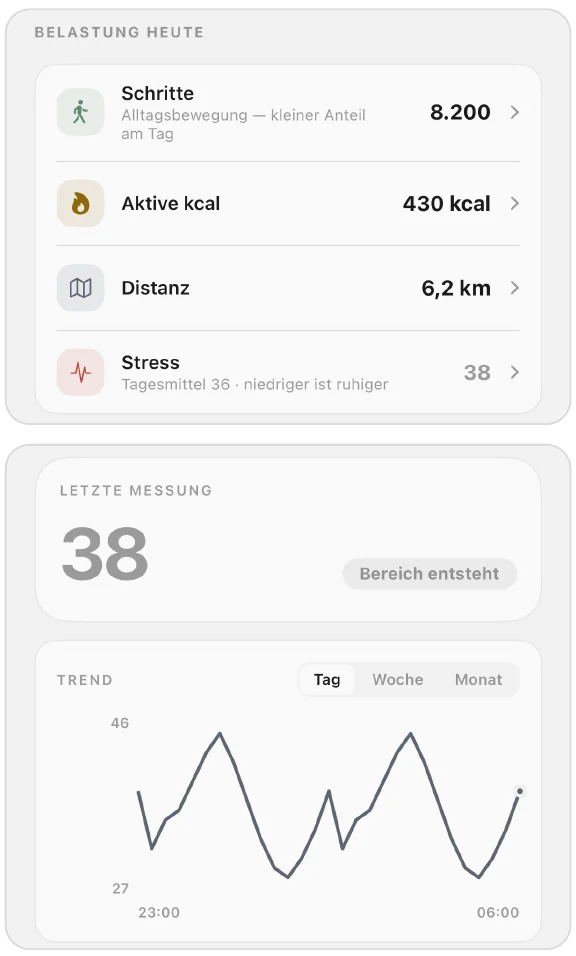
Under Strain today you'll find Steps, active calories, Distance and Stress. Tap a row for details. Source shows where the value comes from. If two sources report steps, the higher value counts. Distance is estimated from steps and body height.
Stress
Tap Stress. You'll see the Latest measurement and the history for Day, Week or Month. The value comes directly from your ring; the app doesn't add any calculation. Lower means calmer.
Recording a workout
- In the tab, scroll to Start workout and tap Running, Strength or Cycling. The workout starts immediately. You'll find more sports under More.
- During the workout, you see your heart rate live and which of five zones you're in.
- To finish, slide the control at the bottom all the way to the right and hold it for about 3 seconds.
- Tap Save workout. If you discard it, nothing is saved.
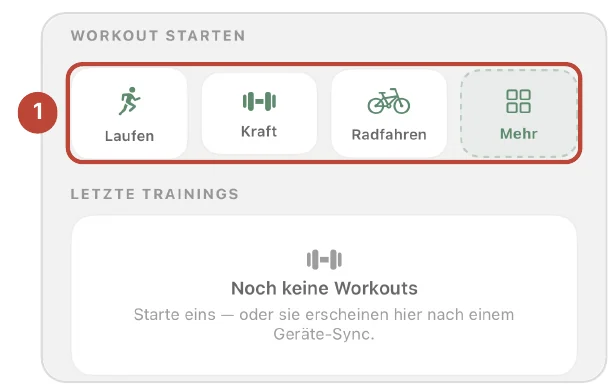
You'll find completed workouts under Recent workouts.
6Body
The Body tab shows your body over the long term: vitals, BioAge and – if you like – your cycle.
Vitals
Under Vitals you'll find four values from the night. Tap one: you'll see the trend over 7, 14 or 30 days, last night, your usual range and What this means.
- HRV
- Heart rate variability: how much the interval between your heartbeats varies during sleep. If it's above your baseline, that usually indicates good recovery.
- Resting heart rate
- the lowest heart rate your ring measures during sleep.
- Blood oxygen
- how much oxygen your blood carries during the night.
- Body temperature
- your temperature during the night. What matters is the deviation from your baseline, not the number itself.
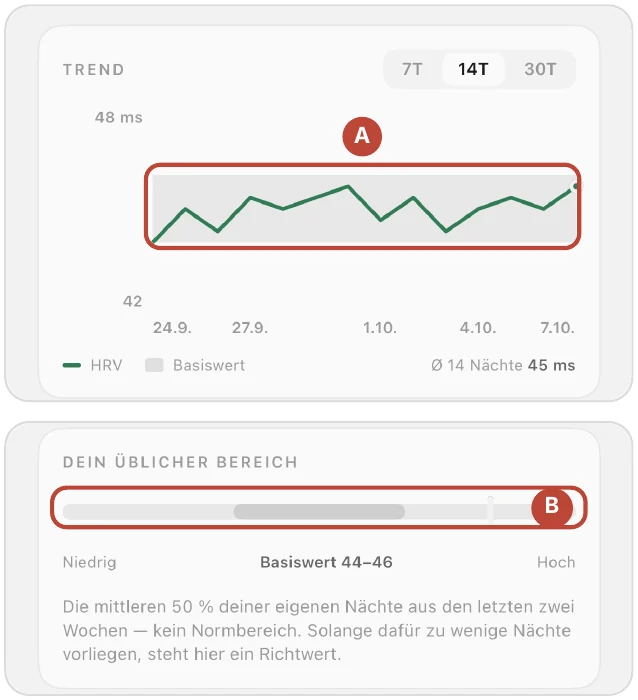
You compare yourself with yourself. After 7 nights your baseline is set; after about two weeks it's reliable. The grey band in the trend A and under “Your usual range” B shows it.
BioAge
At the very top of the tab is your BioAge: an estimate of how old your body seems based on values such as resting heart rate, sleep and activity, compared with reference values for your age and sex. It appears once you're at least 18, your birth month and year are in your profile (circle at top left, then Profile) and your ring has recorded 14 nights.
Cycle
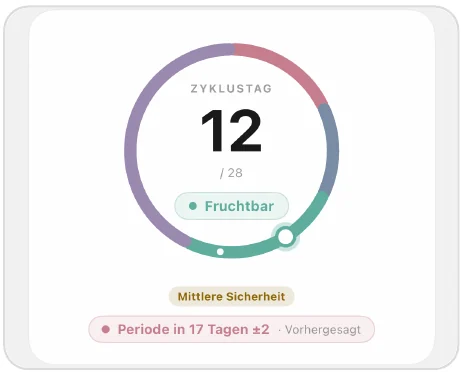
The Cycle card is optional. Tap it and then Turn on cycle insights. Depending on your ring, the app estimates the phases from your nighttime temperature, or otherwise from the period days you enter. Everything is calculated on your phone.
7Coach
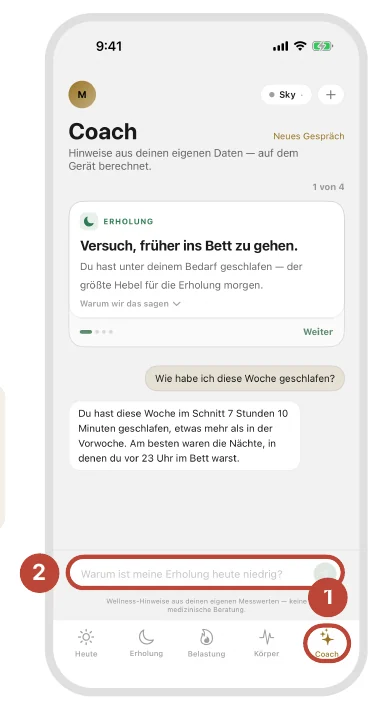
The Insights for today are created on your phone, without an account and even offline, from your first night on. For the Coach chat you need an account and internet access.
- Tap Coach at the bottom. Not signed in yet? Tap Sign in (see “Getting Started”).
- Type your question, e.g. Why is my recovery low today?, and tap Send. Earlier conversations are under History.
The number of questions per day may be limited; the app then shows how many you have left.
8Ring & Battery
TodayRing at top rightMeasurement & battery life
- In Today, tap your ring at the top right. The Devices page opens.
- At the top you'll see Battery and Last sync. Sync now fetches the latest values.
- Under Measurement & battery life, tap a measurement profile. It takes effect immediately; the ring must be connected for this.
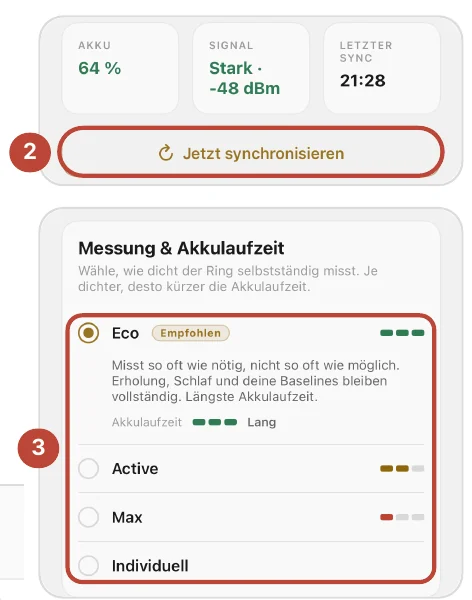
| Profile | Heart rate | Blood oxygen | HRV / Stress | Battery |
|---|---|---|---|---|
| Eco · recommended | every 30 min | every 120 min | every 60 min | Long |
| Active | every 10 min | every 60 min | every 30 min | Medium |
| Max | every 5 min | every 30 min | every 30 min | Short |
| Custom | your own values | depends on values |
With Max, expect to charge daily.
- Battery color
- Green from 30%, yellow from 15%, red below that. Below 30%, the app reminds you to charge.
- Diagnostics & removing
- Diagnostics shows errors that have occurred and creates an export for support. Remove device in the menu at the top right doesn't delete any data.
- Multiple devices
- Under Devices & data in your account, you choose the primary source for each type of measurement, e.g. steps or sleep.
9Data & account, with a club or team
Circle at top leftYour data
Cloud sync
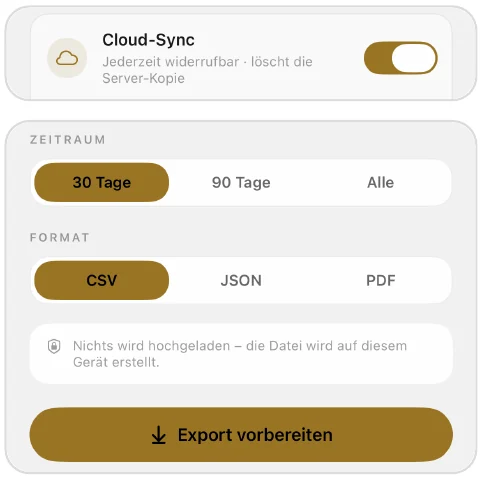
Off by default; requires an account. On: your measurements are also stored on the NextRing server in the EU. Off: the server copy is deleted and all sharing ends. Your phone keeps everything.
Export
Export all my data as CSV, JSON or PDF. The file is created on your phone; nothing is uploaded.
Deleting
Under Privacy & data, tap Delete data. Delete account locks the account immediately and deletes it after 14 days. Removing a device never deletes data.
With a club or team
- Open the invitation link on your phone with the app. If needed, sign in with the invited email address.
- Under Shared with the team, untick everything you don't want to share.
- Tap Accept and share. If you only want to join, tap Accept without sharing.
10Help
Circle at top leftHelp & support
Where do I wear the ring?
Snug but comfortable, usually on the index or middle finger of your non-dominant hand.
Can I shower or swim with it?
Yes. But avoid scuba diving, and keep away from saunas and intense heat.
My values are missing.
Wear the ring overnight, open the ring page and tap Sync now. Check that Bluetooth is on.
How do I charge the ring?
Place it in its charging case. A light blinks while charging and stays on once the battery is full.
You'll find more about what's included, wearing, care, safety and technical data in the ring manual.
Manual as PDF
Still have questions?
If you can't find an answer here, our support team is happy to help. Write to us or start the chat.